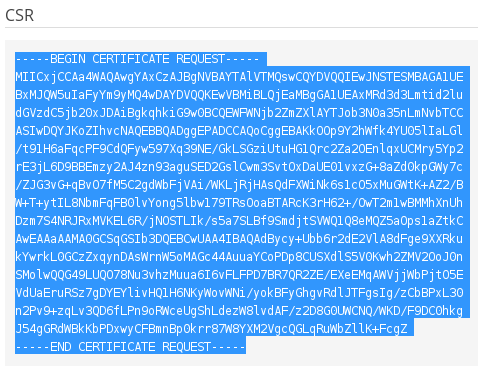
To generate a Certificate Signing Request for your site, follow these steps:
- Log in to Plesk.
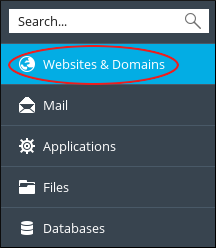
- In the left sidebar, click Websites & Domains:
- Click SSL/TLS Certificates:

-
Click :
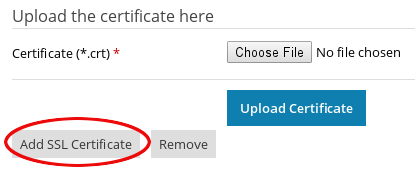
-
On the Add SSL/TLS Certificate page, complete the fields in the request form, and then click .
Most of the fields in the request form are self-explanatory, but a few fields require special attention:
- Certificate name: This is how the certificate is displayed in Plesk. To make it easy to identify later, you should use the domain name.
- Domain name: If you want your SSL certificate to protect the domain with and without the www prefix, you must type www, for example, www.example.com.
- A certificate for www.example.com protects both example.com and www.example.com.
- A certificate for example.com only protects example.com.
- Email: Plesk sends the CSR to this e-mail address.
-
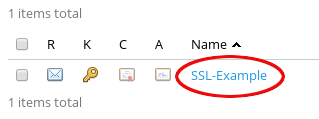
The SSL Certificates page for the domain appears. Click the certificate name:
-
Scroll down to the CSR section, and then copy all of the text, including the BEGIN CERTIFICATE REQUEST and END CERTIFICATE REQUEST headers: